
Virtualizor Guides
Virtualizor Control Panel Guide: Manage Your VPS and Use VNC
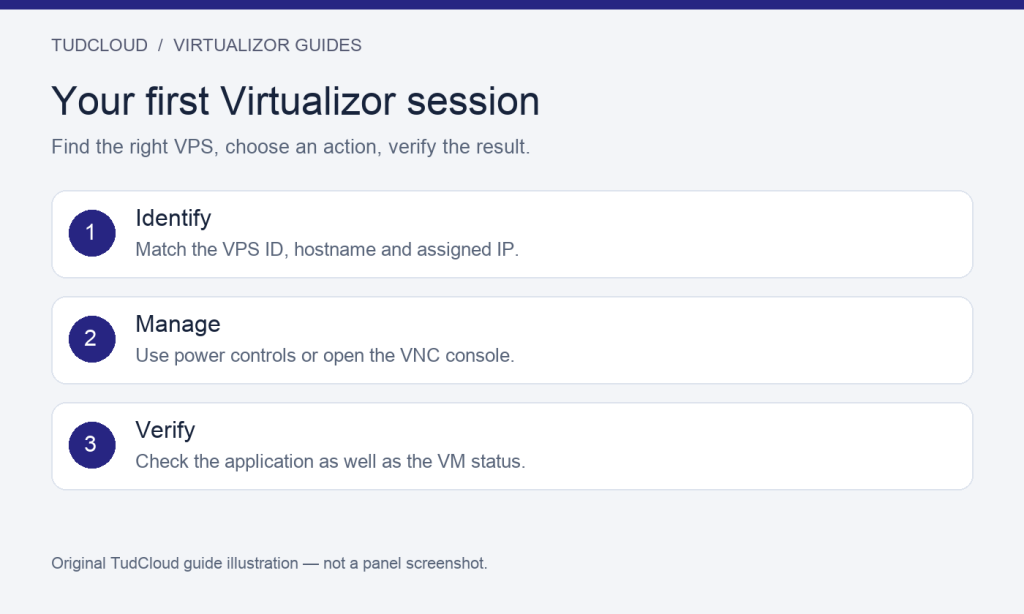
Applies to: VPS services managed through Virtualizor. Open the panel link supplied with your service; some services use a different platform. Labels and available features vary by provider, virtualization type and panel version.
The Virtualizor end-user panel lets you manage a virtual server from outside its operating system. This makes it useful when the machine is powered off or normal remote access is not working. This beginner guide explains a practical first session without changing disks or reinstalling software.
1. Sign in and identify the correct VPS
Use the trusted panel link in your hosting service details rather than a login address found through search. Your billing account, panel account and operating-system login can use different credentials. A failed root login does not necessarily mean your panel password is wrong.
In Virtualizor, open List All and use the arrow beside the relevant VPS ID to reach its management page. Match the ID with the hostname and IP from your order before taking any action. The list can offer search filters including IP and hostname. See the official Manage VPS and List VPS guides.
2. Understand power controls before using them
The documented VPS list includes Start, Stop, Restart and Power off actions; your account may expose a smaller set. Start is relevant when a server is stopped. Restart interrupts running services, so schedule it when users can tolerate downtime.
For routine maintenance, prefer a graceful shutdown or reboot inside the operating system when it is responsive. Read the panel confirmation before proceeding: do not assume every Stop action behaves identically on every platform. Forced power-off can interrupt writes, so treat it as a recovery measure after normal shutdown fails. Avoid repeatedly sending power actions while a task is pending.
3. Open the VNC console
With the VPS switched on, open its VNC tool and select Launch HTML 5 VNC Client, if that option is available. This is the route described in the official VNC guide. The guest operating system can still require its own login credentials.
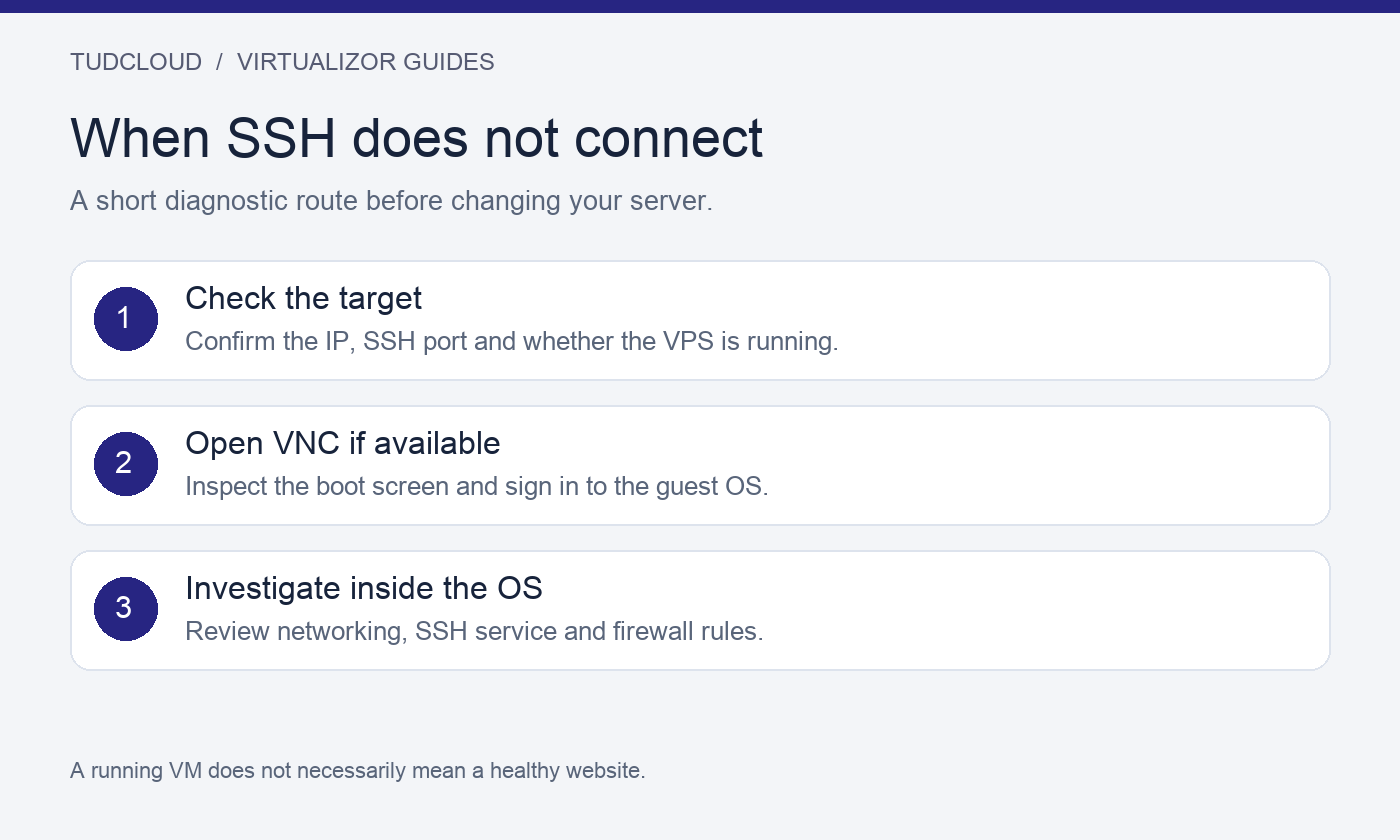
The console helps distinguish a boot problem from an SSH connection problem. A normal login prompt suggests the OS has booted; a recovery prompt or boot error points elsewhere. If the browser blocks a console window, allow it only for your trusted panel domain. Capture the error text if the console itself fails.
4. Verify the service after a restart
Check more than the panel power indicator. Reconnect using the expected IP and port, open your website and test one useful application action. For example, load a page backed by the database rather than checking only a static homepage. If the website fails while console access works, investigate its services before rebooting again.
Common questions
Does restarting reinstall my VPS?
No. Rebooting and OS reinstallation are different operations. Reinstallation replaces the system and can erase its data; read our Virtualizor reinstall checklist before choosing it.
What should I send to support?
Include the VPS ID, approximate failure time with timezone, the exact error and whether console access works. Do not include passwords or private SSH keys.
Choose a VPS for your next project
Compare TudCloud Hong Kong VPS and Seattle VPS options. Before ordering, confirm the control panel, operating system choices and backup options for the specific plan. Existing customers can use the TudCloud client area for service details and support.