
Virtualizor Guides
Virtualizor VPS Backup and Restore: A Practical User Guide
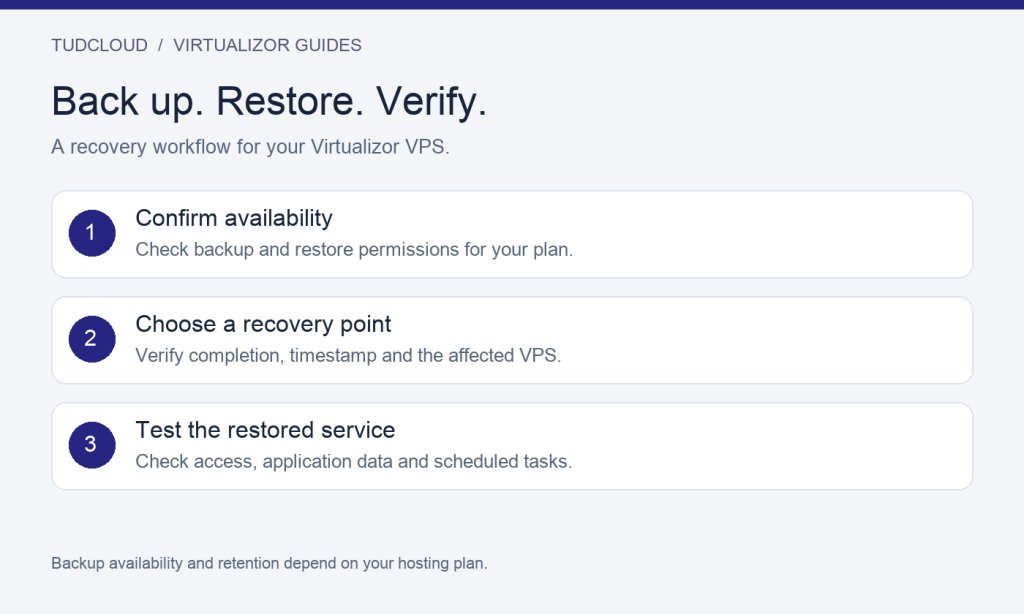
Applies to: VPS services managed through Virtualizor. Open the panel link supplied with your service; some services use a different platform. Labels and available features vary by provider, virtualization type and panel version.
A backup is valuable when you can use it to recover the application you actually run. For a VPS hosting a store, that means restoring both website files and the database containing orders. This guide covers the Virtualizor panel workflow and the checks that make a restore useful.
1. Check what your hosting plan includes
Open your VPS management page and look for the backup tool. The standard end-user backup page lists available backups and provides a manual backup option when offered. See Virtualizor’s end-user backup documentation.
Backup and restore permissions are separate considerations. For deployments using Backuply integration, Virtualizor explicitly makes end-user backup creation and restoration dependent on the assigned backup plan. A missing restore control is not necessarily a browser problem. Ask the provider to confirm access rather than repeatedly retrying. Official Backuply backup and restore guide.
Before relying on the feature, ask how often backups run, how long they are retained, where they are stored, which disks are covered and whether a restore causes downtime. Confirm any fees and whether backups survive service cancellation or reinstallation. Never assume these policies from a panel icon.
2. Create and verify a manual backup
- Identify the correct VPS by ID and IP.
- Open its backup tool and review existing recovery points.
- Use the available manual backup action if your plan permits it.
- Wait for completion and check the resulting timestamp and status.
- Record the recovery point and the change you are about to make.
Do not begin a risky upgrade just because a backup request was accepted. A queued or running job is not yet a completed recovery point. If the task fails, preserve the error and contact support with the VPS ID and time.
For applications that constantly write data, also use an application-aware backup method. A database export or a coordinated backup procedure can complement a VM-level copy. Keep a separate recovery copy outside this VPS and periodically test it. For PostgreSQL users, see our backup and restore test guide.
3. Prepare for a restore
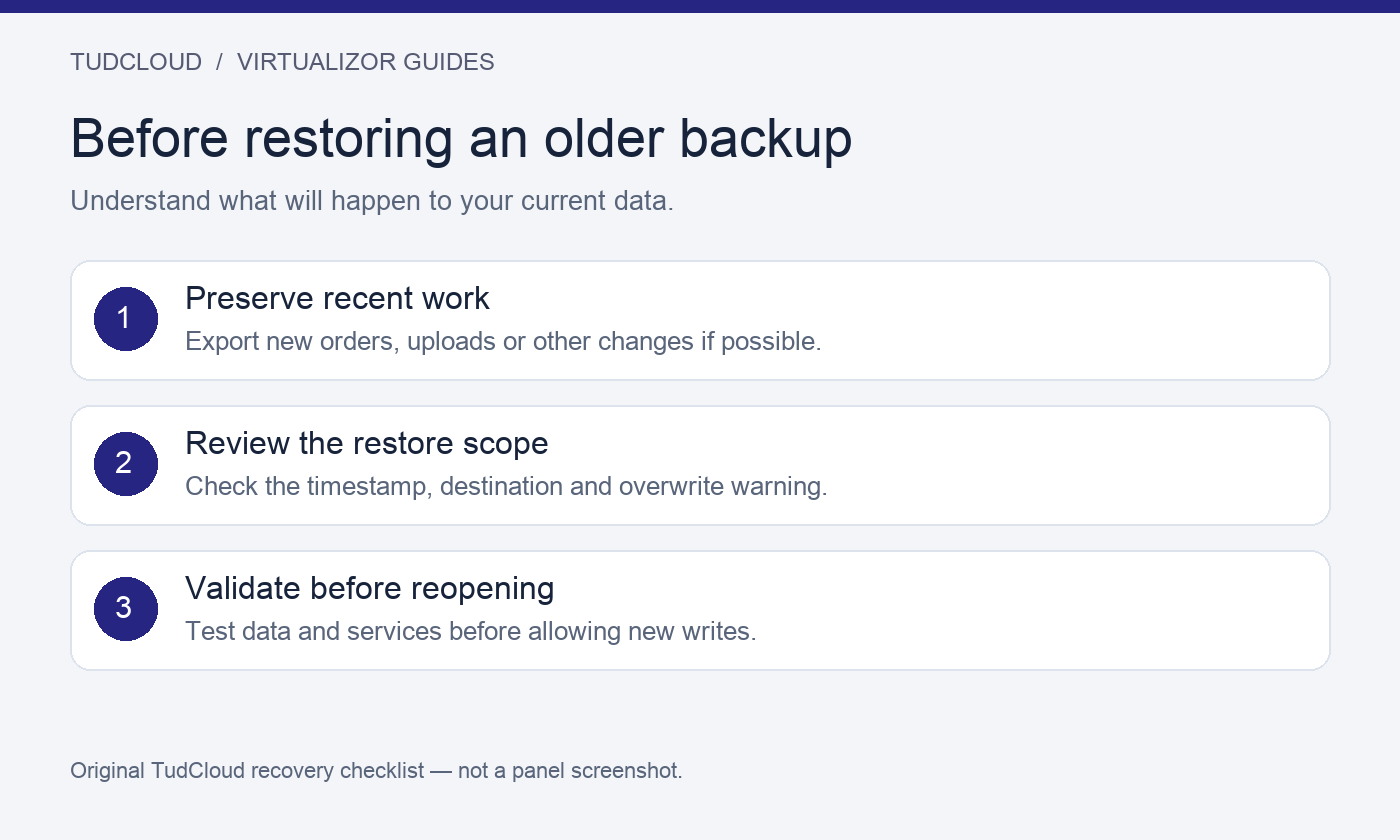
Restoring an older server image can replace newer files and database records. Suppose your backup is from Monday and you restore on Wednesday: Tuesday’s changes may be absent afterward. Export any recoverable recent orders, uploads or configuration before you proceed, and plan how to reconcile them.
Choose the intended recovery timestamp, confirm its timezone and check the target VPS. Read the overwrite and downtime warning. Pause application writes during the planned recovery window where appropriate. If there is no restore action, request a provider-assisted restore rather than deleting or reinstalling the VPS.
4. Restore and validate the application
Where self-service restoration is enabled, select the intended recovery point and follow the panel’s confirmation prompts. Let the task complete without starting competing operations. Exact controls depend on the backup backend, so use the instructions shown in your deployment.
Afterward, test console or SSH access, load the website, check database content and verify uploaded files. Review background workers and scheduled jobs before resuming them; a restored task can otherwise repeat work already done. Keep the recovery record until you are satisfied with the result.
Is a snapshot the same as an independent backup?
Not necessarily. The label does not tell you whether data is stored separately from the source server or how it can be recovered after a storage failure. Ask about storage independence and retention. This guide does not assume your plan includes snapshots or offsite backups.
Choose a VPS for your next project
Compare TudCloud Hong Kong VPS and Seattle VPS options. Before ordering, confirm the control panel, operating system choices and backup options for the specific plan. Existing customers can use the TudCloud client area for service details and support.