
Install CyberPanel with OpenLiteSpeed: VPS Setup and First Website
CyberPanel offers a hosting interface built around LiteSpeed-family web servers. This guide uses the OpenLiteSpeed option and focuses on a single website first. It is based on the official installation and website documentation reviewed October 26, 2026, not a claim that a panel was installed on your existing blog server.
1. Choose the installation target
Start with a fresh Ubuntu 22.04 VPS, root access and a domain you control. The installation article lists multiple OS releases, including older ones; do not choose an end-of-life system simply because it remains on an old documentation page. Check the current installer requirements before selecting another release.
Keep the server free of other hosting panels. Allow public HTTP/HTTPS on ports 80 and 443, retain SSH access, and limit management port 8090 to trusted sources. Leave mail, FTP and other service ports closed unless those services are intentionally deployed.
2. Install the OpenLiteSpeed edition
Update the fresh Ubuntu machine, then download the official installer into a file:
sudo -i
apt update && apt upgrade -y
apt install -y curl
curl -fL https://cyberpanel.net/install.sh -o cyberpanel-install.sh
less cyberpanel-install.sh
After reviewing the script and confirming its official source, run:
sh cyberpanel-install.shSelect CyberPanel with OpenLiteSpeed. Choose the current stable panel release and a strong custom or generated administrator password. Review optional DNS, mail, FTP, cache and remote-database choices; do not enable services solely because a prompt defaults to yes. Save the completion details securely.
Use the HTTPS panel address printed by the installer, normally port 8090. Verify the server identity before entering credentials. Enterprise LiteSpeed is a different web-server/license choice; this walkthrough does not require purchasing it.
3. Add the first website
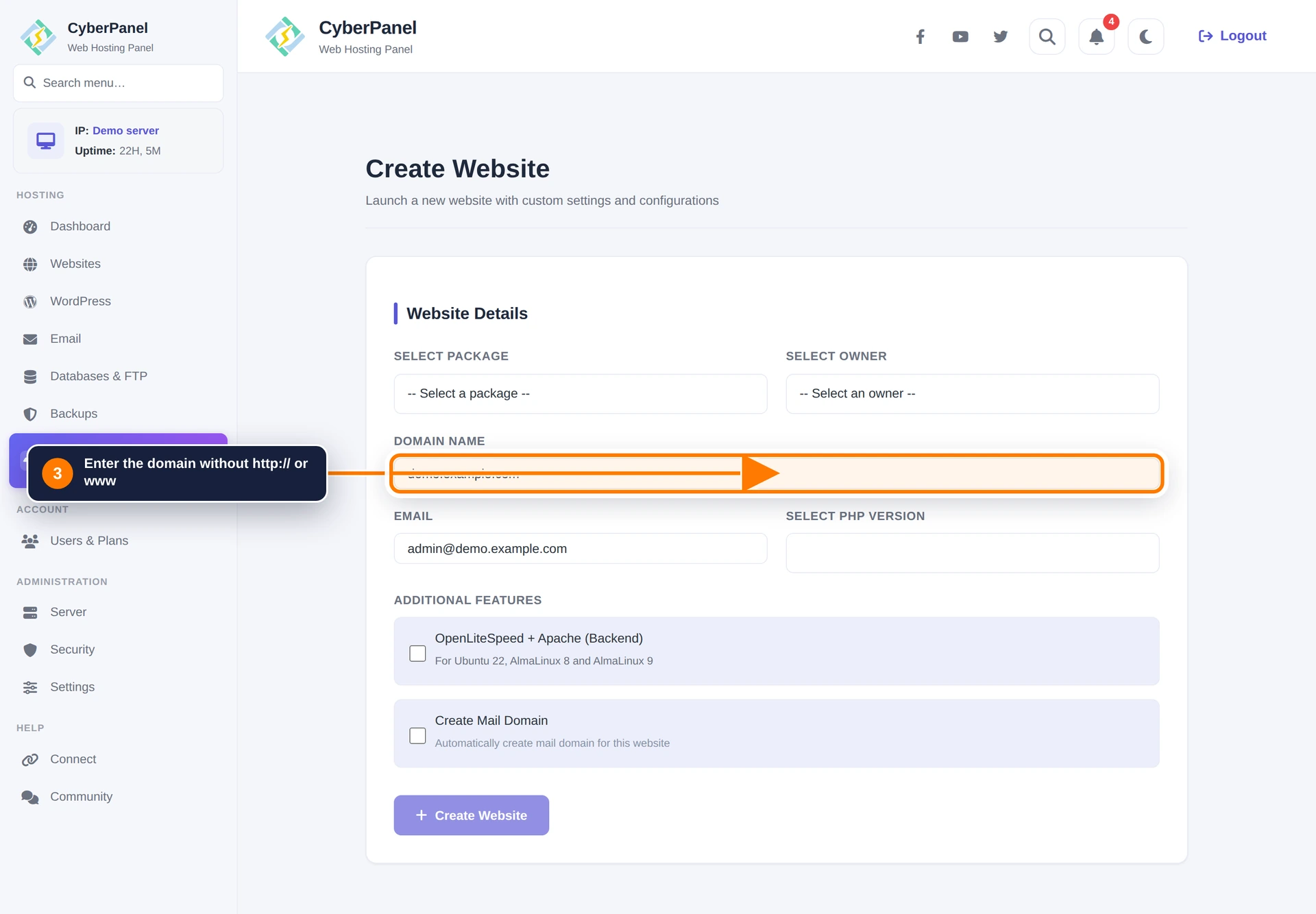
From the dashboard, open Create Website. Select the hosting package and website owner, then enter the domain, administrative email and a supported PHP version compatible with your application. Enter only the hostname, without a scheme or path.
Use a non-admin owner when delegating site management. Leave Create Mail Domain disabled if email is hosted elsewhere. Review the settings, create the website and wait for completion. The current website-creation guide documents this workflow; older screenshots may label menus differently.
4. Upload your application and connect DNS
Open the created site’s management screen to find its document root and file tools. Upload your application to that site’s directory, not the panel’s own files. For database-backed applications, create a dedicated database account with access only to the required database and put the credentials in the application’s configuration.
Point the domain’s A record to the VPS. Only publish AAAA when IPv6 works end to end. Check both the apex domain and www if both will serve the website. Before changing a live site’s DNS, back up the old site and decide how to handle writes during migration; copying files alone does not synchronize an active database.
5. Issue a trusted HTTPS certificate
After DNS reaches the server, open the panel’s SSL management area, select the website and issue a certificate. Newer interfaces may place this under Security → Manage SSL, while older documentation calls it SSL → Manage SSL. See the official certificate guide.
If issuance fails, inspect DNS, port-80 reachability and the validation log before retrying. Do not replace the panel’s certificate tooling with an unrelated script as a first troubleshooting step. Verify that the resulting certificate covers every hostname you plan to redirect to HTTPS.
6. Verify and maintain the installation
- Test public pages, administrator login, media uploads and database operations.
- Confirm the application’s active PHP version and required extensions.
- Check website error logs after testing rather than judging health from the dashboard alone.
- Keep independent backups of files and databases and test recovery on another instance.
- Apply panel security updates promptly; a web application firewall does not replace them.
Timeout on 8090? Check management access rules. Unexpected default page? Check DNS and the virtual host’s domain. Application errors? Review PHP compatibility and document-root permissions. Avoid making the whole site world-writable to hide a permission error.
For a different hosting workflow, compare our HestiaCP guide. Choose the panel around the applications and services you need, rather than installing several panels on one VPS.