
HestiaCP Installation Guide: Host Your First Website on a VPS
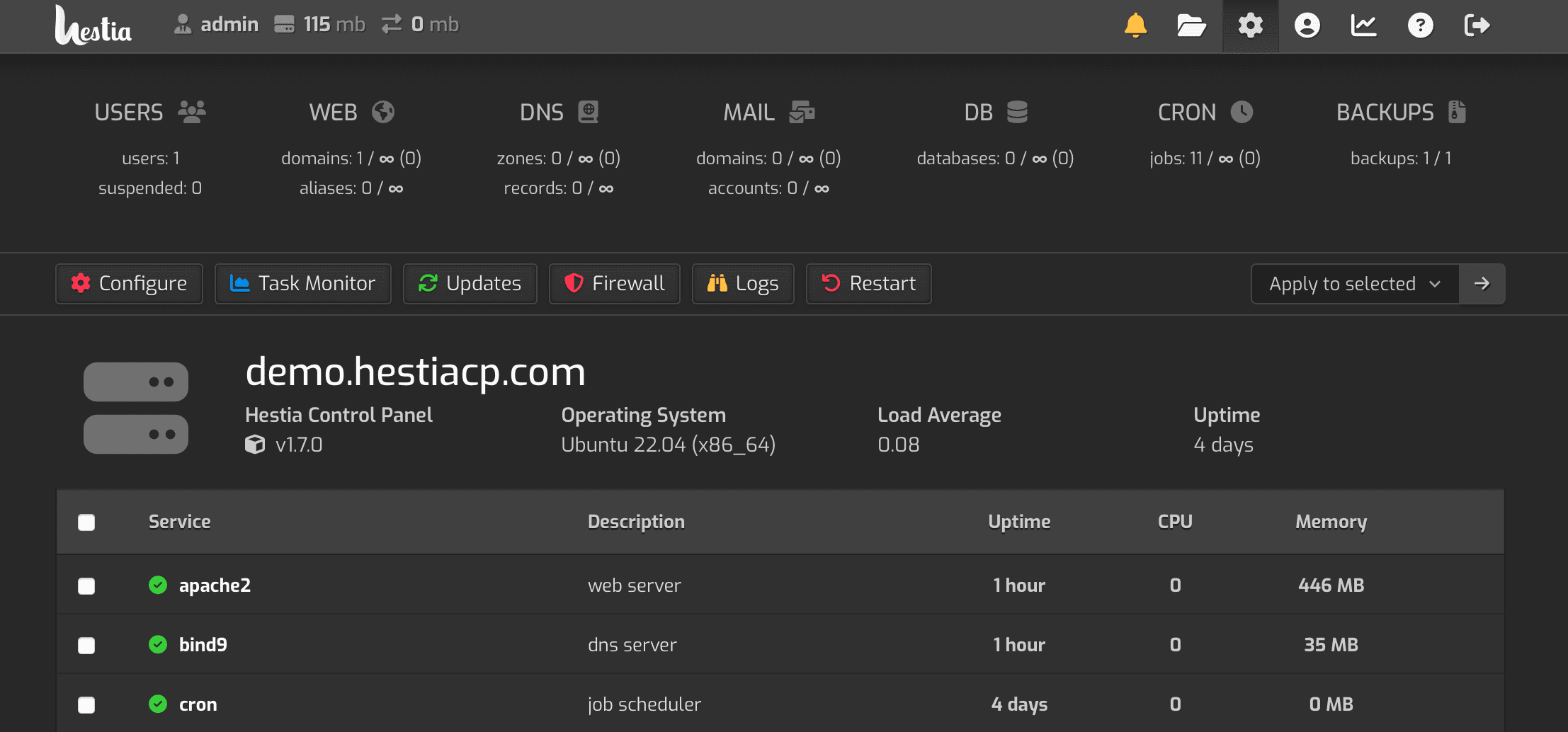
HestiaCP suits a traditional hosting workflow: users, websites, databases and optional DNS and mail services in one interface. This guide covers a first website on a fresh VPS. Instructions were checked against official documentation on October 26, 2026; screenshots show the project’s example interface.
1. Prepare a clean server
For this walkthrough, use a fresh Ubuntu 24.04 LTS or Debian 12 VPS, root access and a hostname such as panel.example.com. Confirm the current supported OS and resource requirements before choosing a different version. Hestia requires a 64-bit supported architecture. Do not install it alongside another panel.
Reserve memory for the applications you will actually run. Antivirus, spam filtering and mail hosting add work beyond serving a small website. A minimal-memory plan is not a promise of comfortable production capacity. Keep a provider console available and record your SSH port before the installer changes firewall rules.
2. Download and run the installer
Enter a root shell on the new server, prepare it, then download the release installer:
sudo -i
apt update && apt upgrade -y
apt install -y wget ca-certificates
wget https://raw.githubusercontent.com/hestiacp/hestiacp/release/install/hst-install.sh
bash hst-install.sh -h
Review the options first. For the standard interactive installation, run:
bash hst-install.shFollow the prompts and save the final login details securely. If you do not need mail or authoritative DNS, use the official installation generator to choose services before installation. Do not add --force to work around a non-clean server. The default panel port is 8083; restrict it to trusted administration sources.
3. Create a website user, then add the domain
Open the HTTPS panel address reported by the installer. Verify you are connecting to your server before entering credentials. Follow Hestia’s best practices: create a separate user for website ownership instead of placing public websites under the administrator account.
Switch to that user, open Web → Add Web Domain, enter a bare hostname such as example.com, and save. Only select DNS-zone creation if Hestia will actually be authoritative for the domain. Only enable mail if you intend to operate mail on this server. Creating a local DNS zone does not change the registrar’s nameserver delegation.
4. Install WordPress and enable SSL
Open the domain, select Quick install App, choose WordPress and complete its setup fields. Use a unique application administrator password and let the task finish before closing the page. For a custom application, upload its files and configure its database instead.
Point the domain’s A record to the VPS; check any AAAA record as well. In the domain’s settings, enable SSL and select the Let’s Encrypt option. Save, verify HTTPS, then enable automatic HTTPS redirection. Delay HSTS until all relevant HTTPS behavior is working reliably. These controls are described in the Web Domains documentation.
5. Make a backup you can actually recover
Open Backups and choose Create backup. Wait for completion, then download a copy or use a configured remote destination. Hestia supports restoring a full backup or selected components; consult its backup guide before doing so. A restore can replace current data, so test it away from the live site first.
Keep a copy outside the VPS. A backup stored on the same disk will not help if that disk is lost. Document where your database, uploads and secrets live so that a successful archive does not hide missing application data.
First-day checks and troubleshooting
- Verify the site over HTTPS from a different network, including www if used.
- Test the application login, image upload and database-backed pages.
- If mail is hosted elsewhere, leave its MX records unchanged.
- If panel access fails, check port 8083 and your administrator-IP rule without disabling the whole firewall.
- If an application fails after changing PHP, check its extensions and logs before changing versions again.
Review user permissions and two-factor authentication in the panel. Apply panel and operating-system updates through supported workflows. For another VPS-first workflow, see our CloudPanel tutorial.