
How to Install CloudPanel on an Ubuntu VPS and Launch WordPress
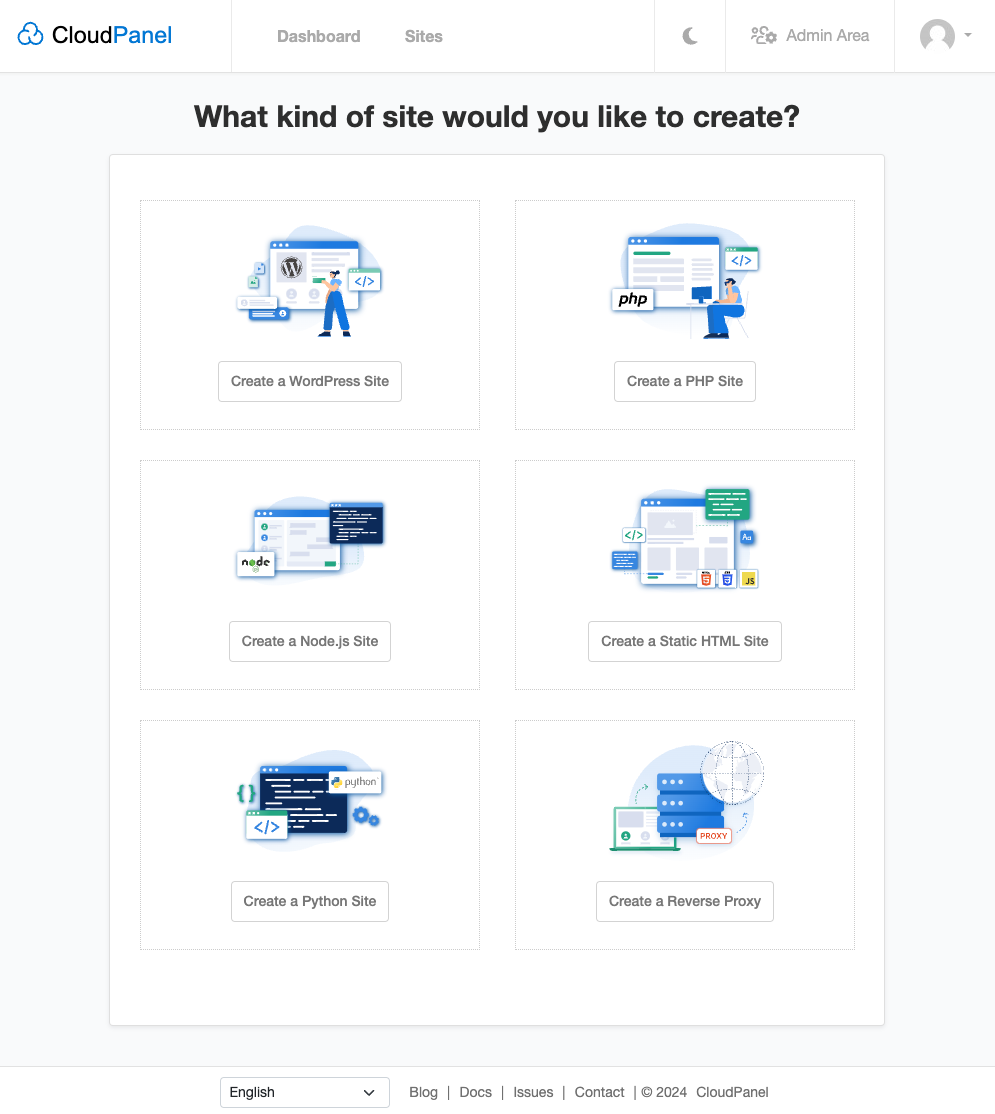
A control panel is useful when you want to spend less time editing web-server configuration and more time running your website. This walkthrough takes a fresh VPS from installation to a working WordPress site with CloudPanel. It is a documentation-based guide, reviewed October 26, 2026; interface screenshots are official examples, not a TudCloud customer server.
1. Start with the right VPS
Use a new Ubuntu 24.04 LTS installation with root access. Choose at least the resources listed in the current requirements; leave extra memory and disk capacity for WordPress, uploads and backups. Do not install over cPanel, Hestia, an existing production stack or the server hosting your current website.
Prepare a domain, access to its DNS records and a provider console. Take a snapshot of the empty machine. Keep your SSH session open while configuring network access. Allow website traffic on TCP 80 and 443, retain your actual SSH port, and restrict the CloudPanel management port 8443 to your administrator IP where possible.
2. Install CloudPanel
Log in and become root. On the new Ubuntu server, update packages and install the download utilities:
sudo -i
apt update && apt upgrade -y
apt install -y curl wget sudo
If the update requires a reboot, do it before installing the panel, then reconnect. Open the official installation page, select Ubuntu 24.04 and a supported database engine, and copy its complete installation command. Run that command on the VPS. Keep the SHA-256 verification in place: the installer and published checksum change together, so an old copied checksum is not a reason to bypass validation.
After installation, visit https://YOUR_SERVER_IP:8443 and create the administrator promptly. Keep access restricted during this initial setup. If a certificate warning appears, verify the destination and certificate through a trusted path before sending credentials; never treat an unexpected warning as routine.
3. Create the WordPress site
In CloudPanel, choose Add Site → Create a WordPress Site. Enter the domain and requested account details, then create the site. Save the generated credentials in a password manager. The site user is separate from the panel administrator and owns the application files; use that account for deployment instead of routinely working as root. See the official Add Site guide.
4. Connect DNS and issue HTTPS
Create an A record for the chosen hostname pointing to the VPS IPv4 address. Add AAAA only if IPv6 is configured and reachable. For a www alias, configure its DNS too. A frequent source of failed validation is a forgotten AAAA record pointing somewhere else.
Once public DNS reaches this server, open the site’s SSL/TLS area and use Actions → New Let’s Encrypt Certificate. Include only names that resolve correctly, then choose Create and Install. The certificate documentation explains the controls. If you use a reverse proxy, keep certificate validation working and use a valid origin certificate with strict verification.
5. Check the website before announcing it
- Open the public HTTPS URL in a private browser window and verify the certificate hostname.
- Sign in to WordPress, save permalinks and upload a small image.
- Test a contact form through your actual email delivery service; installing a web panel does not prove outbound mail works.
- Confirm the website’s PHP version in WordPress Site Health, rather than relying only on
php -v. - Create an off-server backup of files and database, then test restoration on a separate instance.
Common problems
Panel times out: check the provider firewall and host firewall for your allowed administrator address and port 8443. Wrong website appears: check A/AAAA records and the domain assigned to the site. HTTPS fails: correct DNS and validation reachability before retrying. 502 error: inspect the site and PHP-FPM logs rather than repeatedly restarting the entire server.
For the next maintenance step, read our PHP security update checklist. If you are provisioning a separate server for this setup, compare Hong Kong VPS and Seattle VPS locations based on your visitors and resource needs.