
Server Security
firewalld on AlmaLinux and Rocky Linux: Open Ports That Stay Open

You opened a firewall port, rebooted the VPS and found it closed again. The server probably did not forget you: firewalld keeps a “working now” configuration and a “saved for later” configuration. This guide helps you update the right one without losing management access.
Scope: an AlmaLinux, Rocky Linux or compatible system where firewalld is already running. Keep provider-console access available. This is rule management, not an instruction to replace another firewall manager.
1. Find the zone that handles your connection
sudo firewall-cmd --statesudo firewall-cmd --get-active-zonesStop if the service is not running; first establish which firewall currently manages the host. Match your network interface or source network to the appropriate zone. The commands below use public as an example, not a universal choice. Substitute the actual zone.
sudo firewall-cmd --zone=public --list-allsudo firewall-cmd --permanent --zone=public --list-allRecord both outputs before making changes. Do not switch the interface into a different zone merely to copy this tutorial.
2. Understand “now” and “after restart”
A normal change affects runtime rules. A change with --permanent updates the saved configuration. Reloading replaces runtime configuration with the permanent version, so a reload can remove unrelated unsaved changes. See firewalld’s runtime versus permanent explanation.
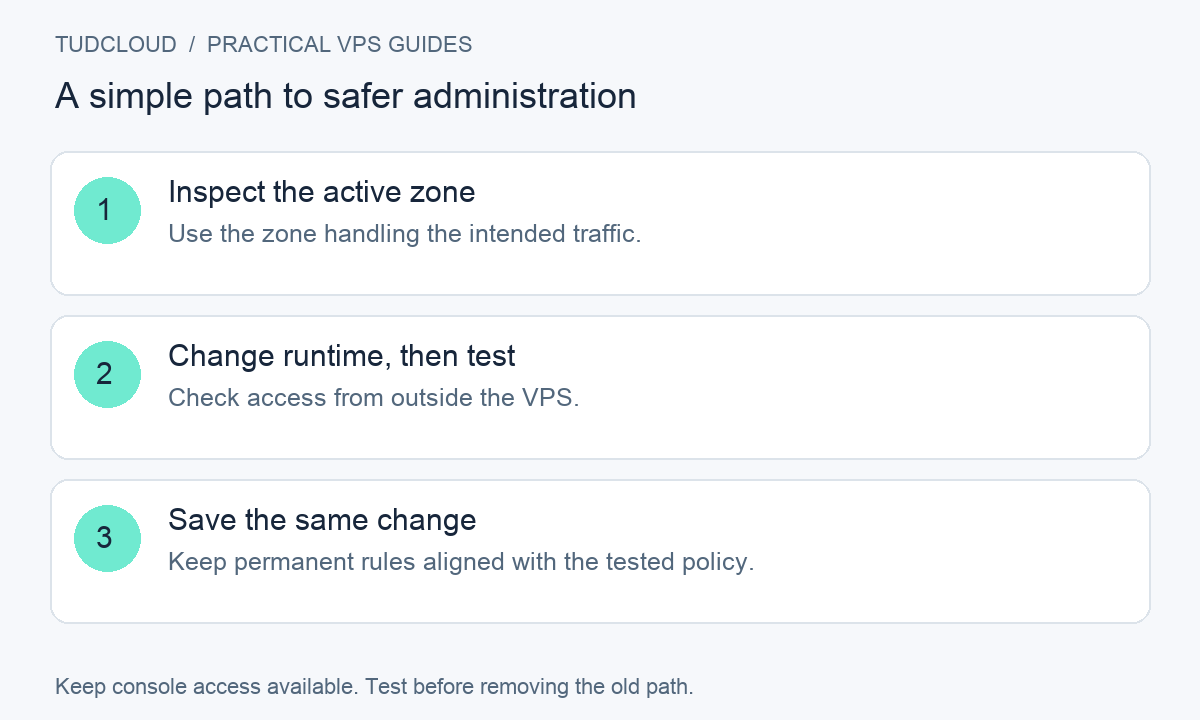
3. Add a web service to both configurations
For a VPS serving HTTPS:
sudo firewall-cmd --zone=public --add-service=httpsTest the website from outside the VPS, then save the same allowance:
sudo firewall-cmd --permanent --zone=public --add-service=httpsNo reload is needed to activate a rule you already added at runtime. Add the HTTP service separately only if your application needs it. The official open a port or service guide describes these forms.
4. Add a custom service port precisely
Suppose a test application really listens on TCP 57419. That number is fictional; replace it with your application’s actual port:
sudo firewall-cmd --zone=public --add-port=57419/tcpsudo firewall-cmd --permanent --zone=public --add-port=57419/tcpDo not add both TCP and UDP unless the service requires both. A port allowance does not start an application or move its listener. For a custom SSH port, verify the management allowance in both configurations before any reload or restart; the predefined SSH service normally refers to port 22.
5. Verify and remove obsolete allowances
sudo firewall-cmd --zone=public --query-port=57419/tcpsudo firewall-cmd --permanent --zone=public --query-port=57419/tcpWhen that test service has been retired, remove the exact allowance from both:
sudo firewall-cmd --zone=public --remove-port=57419/tcpsudo firewall-cmd --permanent --zone=public --remove-port=57419/tcpOnly remove a port you have confirmed is no longer needed. Use the equivalent service-removal operation for a named service; deleting a port entry does not remove an overlapping service or rich-rule allowance. The firewall-cmd manual documents query and removal operations.
6. If the port still cannot be reached
Inspect the application listener with sudo ss -ltnp, then check the provider firewall. A service that cannot bind because of SELinux will not be repaired by adding a firewall rule. If SSH reports a bind-permission error, follow our SELinux and SSH port guide.
For recovery, restore the specific rule you removed or undo the new restriction from the console. Avoid stopping the entire firewall as a routine fix. Once runtime and saved policy match, test again after a planned reboot with console access available.
Keep building with TudCloud
Compare Hong Kong VPS and Seattle VPS options for your project. Existing customers can find service details and request help in the client area. Confirm the operating system, panel and recovery-console options for your chosen plan.
Documentation reviewed October 18, 2026. Examples use fictional connection details. Cover artwork is a conceptual illustration, not a customer screenshot or a photograph of TudCloud staff. Commands must be adapted to your server; they have not been tested against every provider image.