
Server Security
SSH Not Working? Fix Timeout, Connection Refused and Permission Denied

“SSH is broken” is a starting point, not a diagnosis. The error usually tells you which door to inspect. Read it once before reaching for the reboot button; the VPS may be perfectly awake and simply waiting at a different address.
Before you begin: verify the IP, username and current SSH port in your service records. Keep a working session open or use the provider console. All examples below use fictional port 51873; replace it with the port actually configured on your VPS.
1. Capture one useful attempt
On your computer:
ssh -v -o ConnectTimeout=10 -p 51873 your_user@YOUR_SERVER_IPThe verbose output shows connection and authentication progress. It can contain usernames, hostnames and local paths, so redact those before sharing it. Do not paste credentials. OpenSSH documents -v and port selection in its client manual.
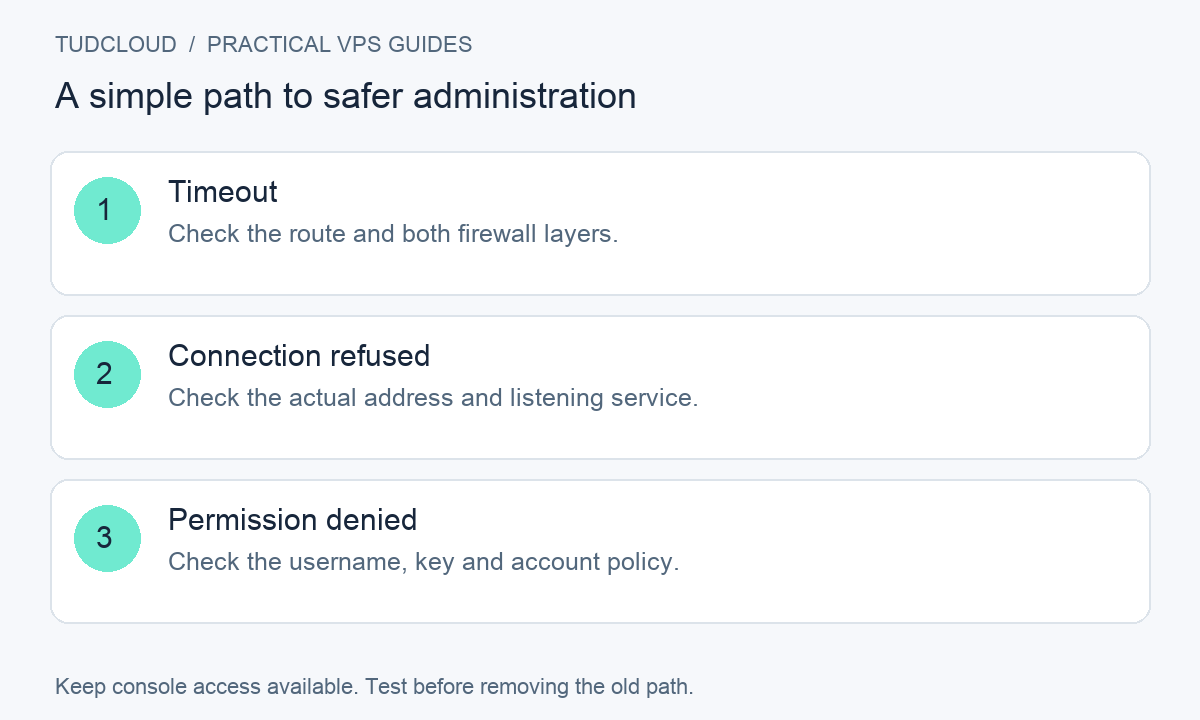
2. “Connection timed out”: inspect the path
A timeout means the connection did not complete in time; it does not prove the server is powered off. Check the provider firewall, Linux firewall and any source-IP restriction. A rule allowing yesterday’s home IP may not allow today’s mobile hotspot. Try the verified IP directly if a hostname may point elsewhere.
Where both address families are configured, compare an IPv4 attempt using ssh -4 with an IPv6 attempt using ssh -6. Treat the results separately. Do not turn off all firewall protection to discover which rule is missing; follow our two-layer firewall checklist.
3. “Connection refused”: look for a listener
From the VPS console:
sudo ss -ltnpLook for the intended port and address. A listener bound only to loopback is not reachable through the public IP. A refusal can also come from an explicit firewall rejection, so an absent listener is a clue, not the only possible cause.
On Ubuntu or Debian, inspect the available SSH units:
systemctl status ssh.socket ssh.service --no-pager -lsudo journalctl -b -u ssh.socket -u ssh.service -n 40 --no-pagerOn AlmaLinux or Rocky Linux, the common service name is sshd.service; inspect that unit and its journal instead. A missing unit name does not mean the OS needs reinstalling. After a port change, consult our socket and SELinux guide before repeatedly restarting services.
4. “Permission denied”: inspect authentication
You have reached an SSH server, but it did not accept the attempted authentication. Recheck the username, which key your client offered and where its public key was installed. Do not upload a private key to the server as a fix. If you have several keys, select the intended one explicitly:
ssh -i ~/.ssh/tudcloud_vps -o IdentitiesOnly=yes -p 51873 your_user@YOUR_SERVER_IPCheck the server log for the matching timestamp. Account restrictions and permissions can also reject a valid key. Our key-login walkthrough covers the basic installation checks.
5. A host-key warning needs verification
“REMOTE HOST IDENTIFICATION HAS CHANGED” is different from a bad password. A rebuild may legitimately change host keys, but verify the new fingerprint through a trusted console or provider before updating your saved record. Disabling host-key checking just hides the warning.
What to send support
Send the service ID, error text, timestamp with timezone, whether console access works and the last change you made. Share connection details only through the private support channel. Those facts are more useful than twenty identical screenshots of the same failed command.
Keep building with TudCloud
Compare Hong Kong VPS and Seattle VPS options for your project. Existing customers can find service details and request help in the client area. Confirm the operating system, panel and recovery-console options for your chosen plan.
Documentation reviewed October 18, 2026. Examples use fictional connection details. Cover artwork is a conceptual illustration, not a customer screenshot or a photograph of TudCloud staff. Commands must be adapted to your server; they have not been tested against every provider image.